Connect an AI app
Use Settlr from Claude, ChatGPT and other apps that support the Model Context Protocol.
Settlr has an MCP server, so AI apps that support custom connectors can add, find, change and delete your expenses, and create groups and friends, as you. The app's own model does the talking, so this works even where the built-in assistant isn't set up.
Connect
Copy the connector URL
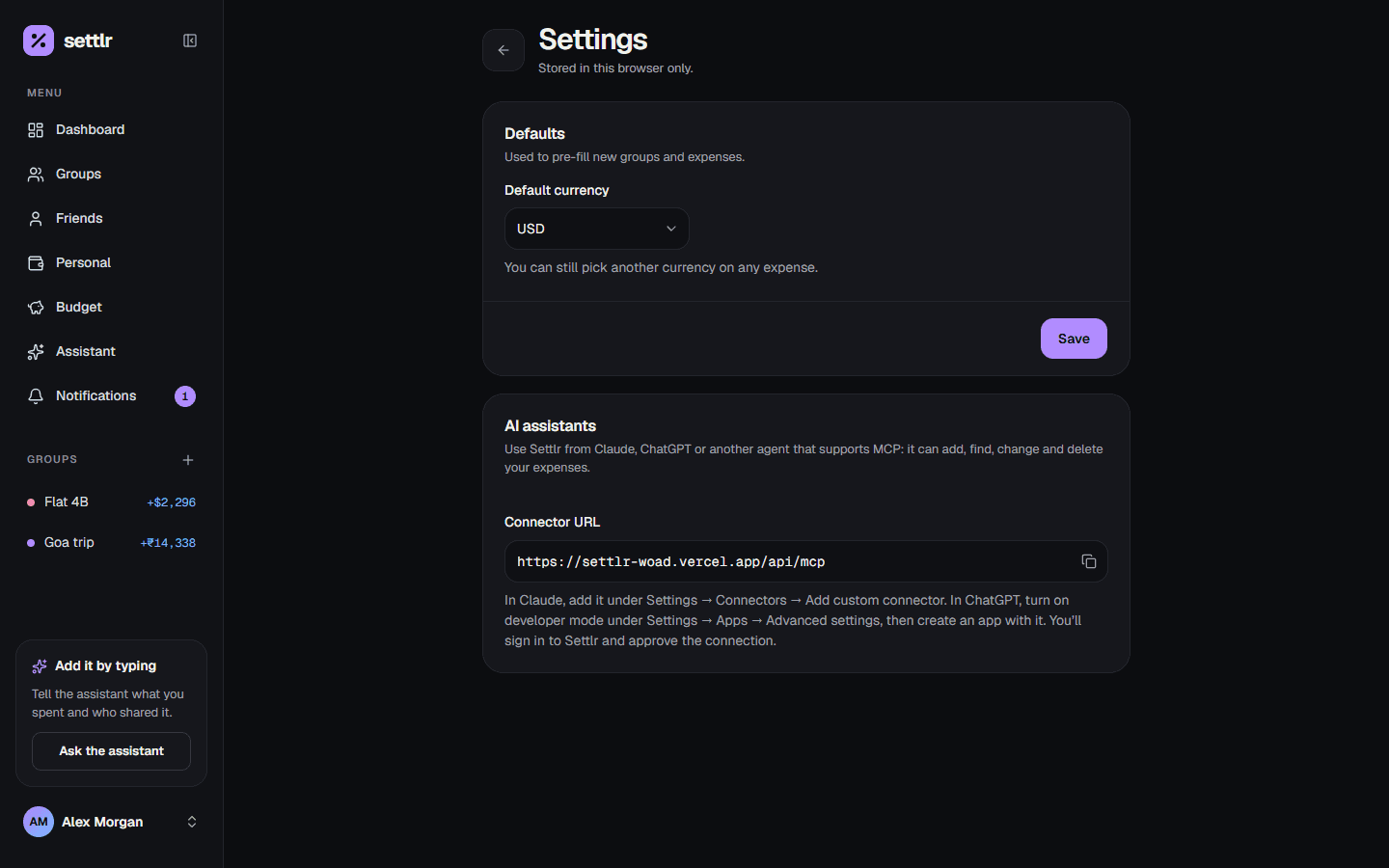
Open Settings → AI assistants and copy the Connector URL: your
Settlr site followed by /api/mcp.
Add it to your AI app
- Claude: Settings → Connectors → Add custom connector.
- ChatGPT: turn on developer mode under Settings → Apps → Advanced settings, then create an app with the URL.
No client ID or secret is needed: the app registers itself.
Sign in and approve
The app sends you to Settlr. Sign in if you aren't already, check the app's name and where it'll send you back, and choose Allow. Settlr asks every time an app connects.
Tools
| Tool | What it does |
|---|---|
list_friends_and_groups | Your name, friends, groups (with members and currency), default currency and today's date |
add_personal_expense | Adds an expense that's just yours |
add_friend_expense | Adds a one-on-one expense with a friend |
add_group_expense | Adds an expense in a group, in the group's currency |
create_group | Creates a group; members are just names |
add_friend | Adds a friend for one-on-one expenses |
search_expenses | Finds expenses, with totals and your share |
update_expense | Changes an expense found with search_expenses |
delete_expense | Deletes an expense. It's marked destructive, so the app asks you first |
Over MCP, your default currency is the currency of your latest personal expense, or USD if you have none.
Manage connected apps
Settings → AI assistants lists the apps you've approved. Disconnect revokes an app's access; it has to ask you again to reconnect. Otherwise a connection lasts as long as the app keeps using it: each refresh token is good for 30 days and is replaced every time it's used.